Acquisition
Lead pipeline
Under Lead pipeline in the sidebar sits a board with one column per stage. Every lead is a card, and the card moves right the closer that person gets to a decision. What you want to see: where people currently stand, and who's been waiting too long.
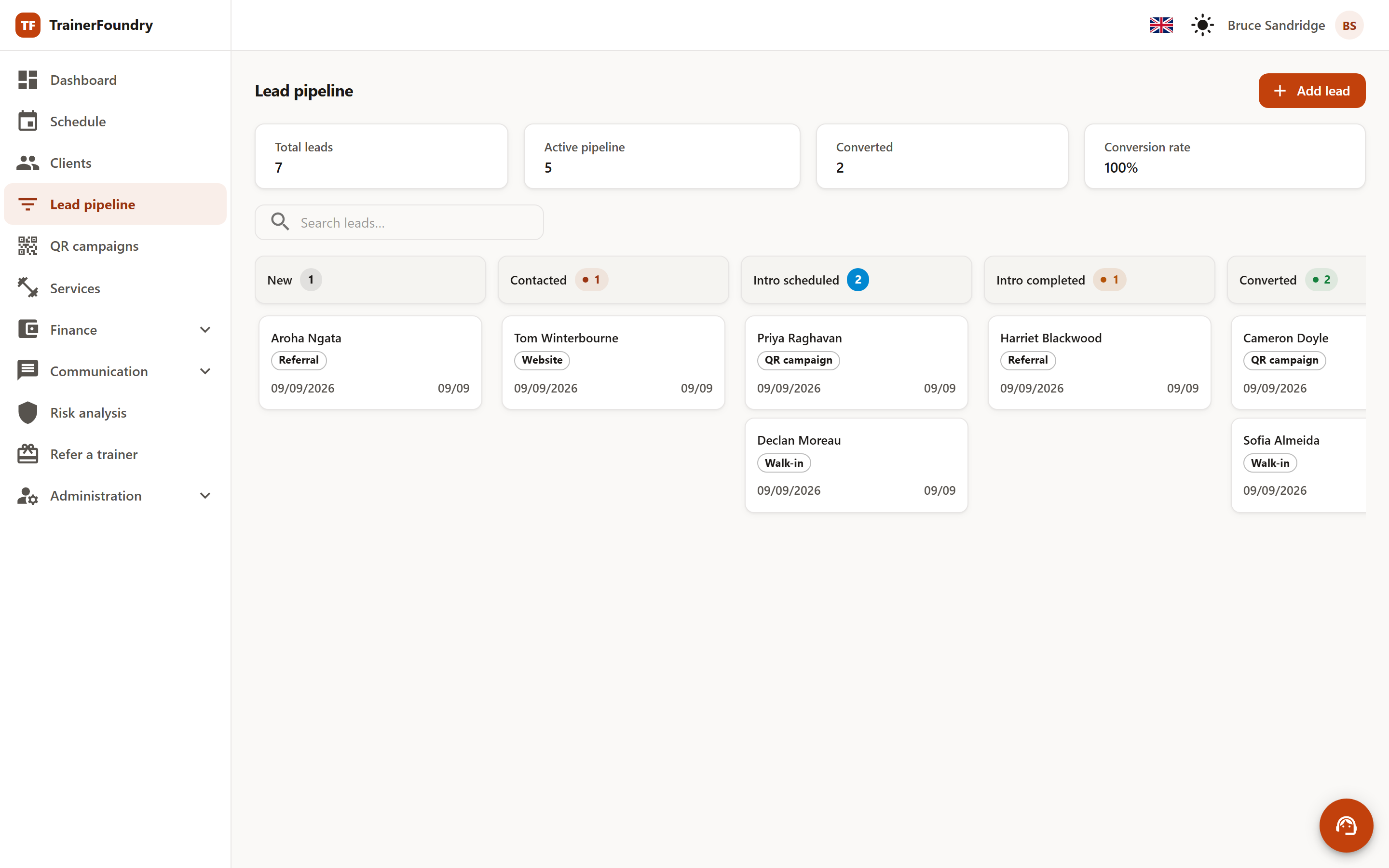
The six stages
- New — Just came in, not yet touched.
- Contacted — They've been in touch — a call, a message, an email.
- Intro scheduled — A time for the intro session is booked.
- Intro completed — The intro session has happened; a decision is now pending.
- Converted — The lead has become a client. Terminal.
- Lost — Won't happen — the reason shows in the detail view for as long as the card sits here.
The first four make up the active pipeline: there's still something to do here. The last two are shelves for what's already been decided.
Adding a lead
Most leads appear on their own — through a QR campaign or your public intro-session page. Anyone you meet in person instead, at the studio or on the phone, goes into the board via Add lead.
Only first name, last name and a valid email address are required; phone, source and notes are optional. That's deliberate — a lead should take twenty seconds to record, not five minutes.
The source later answers the question of what actually pays off:
- QR campaign — Came in through a scanned QR code — set automatically.
- Intro booking — Reserved for a booked intro-session slot — a path the public page doesn't offer today; filling in the details form there produces QR campaign or Website instead.
- Manual — Added by you by hand.
- Website — Reached out through your own website — also the source when someone opens your public intro-session page directly, without scanning a code first.
- Referral — Referred by an existing client.
- Walk-in — Set only automatically, when a walk-in is checked in during a session — not a selectable option in the Add lead form.
Moving cards
Drag a card with the mouse into the next column. You may go in either direction and skip stages: a lead who wants to buy right after the first call can go straight to Converted; one that landed in the wrong column by mistake can move back. The pipeline doesn't dictate a path — it only records where someone stands.
One exception: Converted is final. No card can be pulled back out of that column, because converting already created a client — demoting the lead would leave that client dangling. The app tells you the same thing if you try.
On narrow screens there's no board, just a list of every lead with its stage, source and last contact. There's naturally no dragging there — instead, every row carries its own stage select, which moves a lead between stages the same way dragging does on the board, including opening the same dialog when you pick Converted or Lost. Tapping the row itself still opens the detail view with the same actions available there too.
Marking as lost
Drag a card onto Lost and TrainerFoundry asks for a reason for the loss, with a free-text notes field next to it — that note is stored but never shown back anywhere; only the reason itself later appears in the detail view. Take the ten seconds for the reason: three months later, the difference between "too expensive" and "moved away" is exactly what tells you whether your pricing needs a look. Move the card off Lost again later and the reason is cleared — it's only kept for as long as the lead stays there.
The detail view
Clicking a card opens the details on the right edge: contact details, a campaign chip naming which QR campaign the lead came through (when it did), the intro session date if one is booked, your notes, and — for a lost lead — the recorded loss reason.
Below that sits the activities list. Two things are actually logged there: every stage change and the conversion, and — if a message was left on the public capture form — that one note. There's no way to add a further note to this list from the detail view later, and a sent email or a booked or completed intro session doesn't appear here as its own entry.
While a lead is New or Lost, the detail view also offers Delete — for a duplicate record, or an enquiry that was never worth pursuing. A click first opens a confirmation dialog naming the lead; only a second, explicit click deletes it — permanently, with nothing to undo it afterwards. Once a lead has moved further along, this button is no longer available; for a converted lead, Lost isn't open either from then on, since Converted is itself the final stage.
Converting into a client
When the time comes, drag the card into the Converted column. That works from any stage — even from "New", when someone agrees without a detour.
Once a lead is at Intro completed, the detail view also offers a Convert to client button — the usual route, since that's normally exactly where the decision falls. At every other stage the button isn't there; dragging is the only way. Both paths lead to the same confirmation.
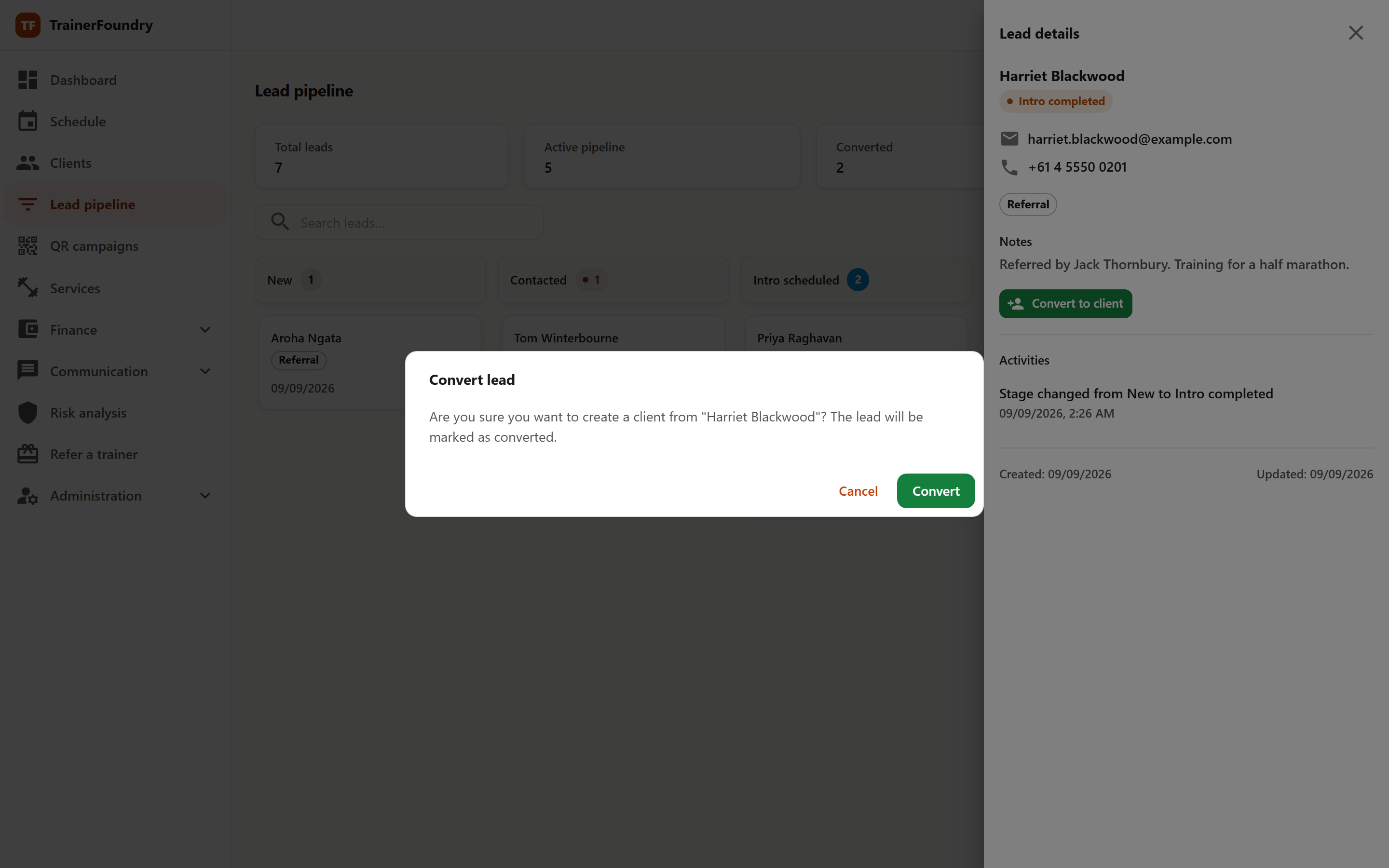
On the Starter plan, converting can hit the 25-active-client cap — TrainerFoundry flags it and offers a switch to Professional; until then, the lead stays unchanged at its current stage.
Once confirmed, the person is a client with their own profile, and the lead sits at Converted. From here you sell offers, schedule sessions and, if you want, grant portal access.
The figures above the board
Four numbers sit above the columns:
- Total leads — every lead ever recorded.
- Active pipeline — the four leading stages combined. This is your actual working list.
- Converted — how many of those have become clients.
- Conversion rate — the share of wins among the decided leads.
That last figure deserves an explanation, because it's often misread: it's Converted divided by Converted plus Lost — anyone still sitting in the pipeline doesn't count. That's the more honest number, since it answers "of the ones that reached a decision, how many did I win?" and isn't flattered by a pile of leads currently sitting open.
A practical consequence: once you have a first conversion and never mark anything lost, the rate stays at 100%. Before that very first conversion, though, it reads 0% — even with no loss on record either. It only becomes meaningful once you keep the losses up to date too.