Communication
Follow-up rules
A follow-up rule is a standing order for staying in touch: you describe once who the rule applies to and what they should read — after that, TrainerFoundry checks every day on its own who that applies to, and sends the message. Found under Administration → Follow-up rules.
How a rule works
Every rule has two parts: a trigger — the condition a client must meet — and a message that then goes out to them. "Clients who haven't been in for 14 days get a friendly reminder" is a complete rule.
Once a day, TrainerFoundry works through every active rule and checks it against your whole client list. This pass runs once a fixed point in UTC time is reached each day and can drift up to an hour later, since the underlying check only ticks once an hour, so exactly when that lands on your own clock depends on your business's own time zone too — rely on the day, not the exact time. When a rule last had its turn is shown on its card.
The switch on the left of the card decides whether a rule gets checked at all. A paused rule stays fully intact but is skipped — the usual way to put a rule on hold without losing it. On the right sit the three actions: Execution log, Edit and Delete.
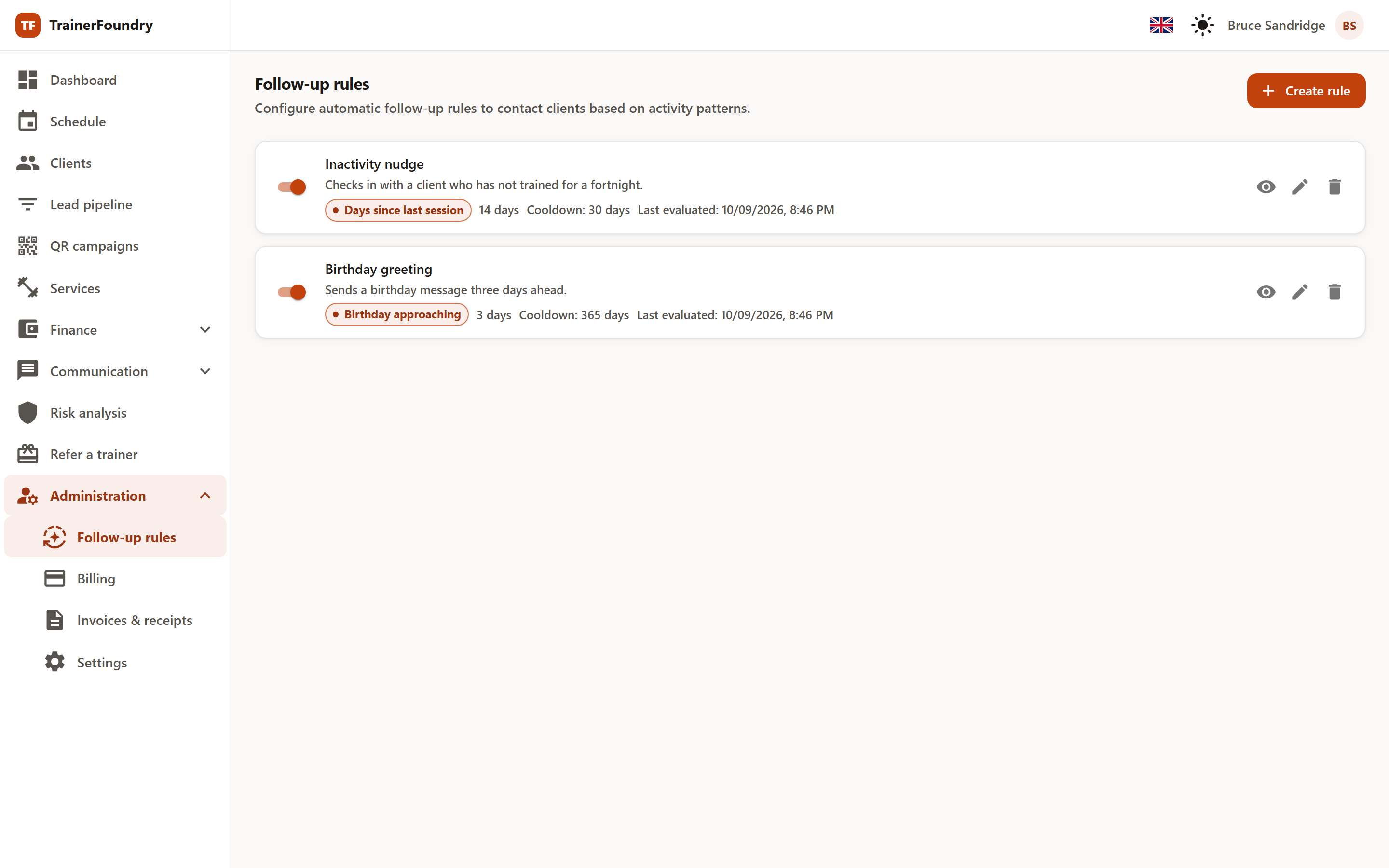
The two counters on the card — sent and skipped — cover the last 90 days, not the rule's entire lifetime. Older entries are cleaned up automatically, so a low counter on an old rule is normal.
Creating a rule
Create rule offers two routes: Create blank rule for an empty form, and Create from template for a ready-made draft. Six templates are available: Inactivity reminder, Post-session follow-up, Birthday greeting, Package expiring, Few sessions remaining and Inactive client.
A template only pre-fills the form — name, description, trigger, threshold, subject, text, cooldown and maximum executions. All of it is freely editable, and nothing gets sent before you hit Save. Your own voice is worth the effort here — the template texts are deliberately kept neutral.
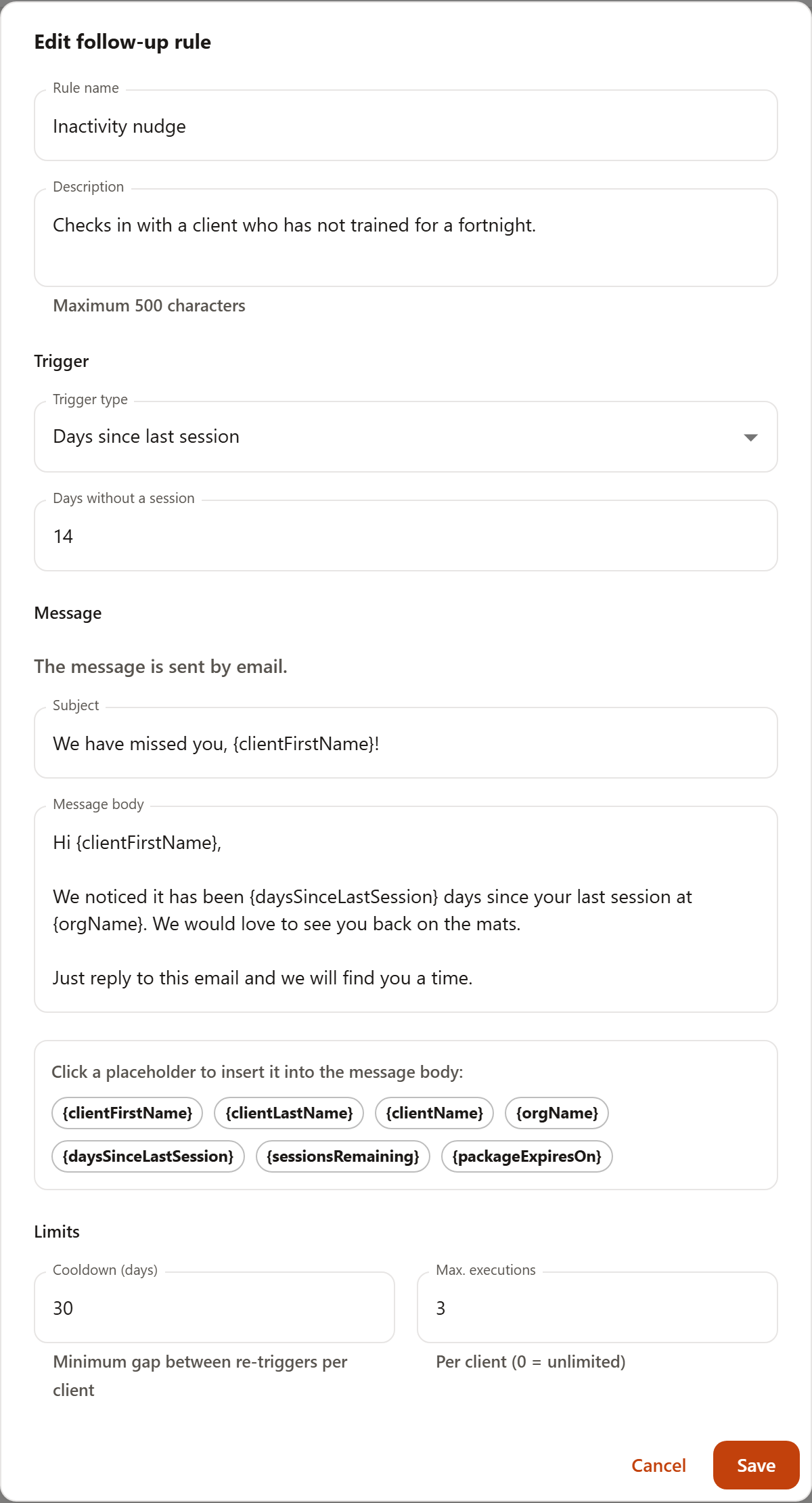
Rule name and description are seen only by your team, never the client. Take the description seriously: six months from now, it's the only thing on the card explaining why this rule exists.
The triggers, at a glance
Seven triggers are available to choose from. All but one require a threshold — the field below it adjusts its label to match the chosen trigger.
- Days since last session · Days without a session — Counts from the client's last session they actually attended. Someone who has never attended a session with you isn't reached by this trigger — that's what "Inactive client" is for.
- Package expiring soon · Days until expiry — Fires when the client's active package expires within the given number of days. Packages with no expiry date and standing memberships with unlimited access never trigger it.
- Few sessions remaining · Sessions remaining — Fires as soon as the active package has this many sessions left, or fewer. The threshold here is sessions, not days.
- No booking after intro · Days after intro — Fires once this many days have passed since the intro session with no booking since. Only reaches clients who came from a lead with an intro session — a client created directly has no intro to measure from.
- Inactive client · Days of inactivity — Like "Days since last session", but more generous: counted from the last session — booked or attended, whichever was later. For someone with no sessions at all, the date they were created counts — a brand-new client doesn't get a reactivation email on day two.
- Birthday approaching · Days before birthday — Fires this many days before the birthday. Requires a date of birth on the client's profile; the birth year doesn't matter.
- Payment failed — The only trigger with no threshold. Fires on a genuinely failed membership charge — not on every open payment request. At most one message goes out per payment problem: if the same problem is still open at the next pass, the client is skipped.
Only clients with the status Active are ever messaged. The two inactivity triggers ("Days since last session" and "Inactive client") are the exception: they also reach clients with the status Inactive — otherwise they'd be pointless, since those are exactly the people you're trying to win back. Leads in the lead pipeline never get a follow-up message; these rules apply to clients only.
The message
Every rule sends exactly one kind of message: an email with a subject and message text. There's no channel to pick — nothing to configure there.
TrainerFoundry also builds a push notification for Client App users — but it currently isn't delivered, it never arrives on the client's device. The send history lists it as Skipped. For now, rely on the email.
Inside curly braces you can use placeholders, which get swapped for real values at send time. Clicking one of the chips under the text field appends it to the end of the message — not wherever your cursor happens to be:
-
{clientFirstName}— Client's first name -
{clientLastName}— Client's last name -
{clientName}— Client's full name -
{orgName}— Your business name -
{daysSinceLastSession}— Days since the last session -
{sessionsRemaining}— Sessions remaining on the package -
{packageExpiresOn}— Package expiry date
Three of these placeholders are tied to a specific trigger:
{daysSinceLastSession}
only resolves on a Days since last session rule — Inactive client, despite the similar idea,
supplies no value for it — and
{sessionsRemaining}
and
{packageExpiresOn}
only on a package-type rule. Use one of them in a birthday email and nothing simply appears in
its place — the client won't see a cryptic code, but they will see a sentence with a gap.
Read the text once before saving, exactly as it arrives for the recipient.
A placeholder that doesn't exist isn't accepted by the form at all: a typo is reported as an Unknown placeholder when you try to save.
TrainerFoundry automatically appends an unsubscribe link under every follow-up message. That's not a setting, it's mandatory — marketing email must always be easy to opt out of. The link opens a confirmation page; once the client confirms there, every follow-up rule stops for them, and their profile then shows Follow-ups paused since …. If they later ask to be added back, you switch it back on there via Resume follow-ups. Invoices, session reminders and payment requests aren't affected — those belong to the transaction itself and keep going.
Cooldown and maximum executions
The two fields under Limits are the guard against a well-meaning rule turning into a nuisance — both count per client, not per rule overall.
- Cooldown (days) — the minimum gap before this same rule can message this client again. With an inactivity rule set to a 30-day cooldown, someone who stays away for six months hears from you at most every 30 days — not every day, even though the condition is met every day.
- Max. executions — how many times this rule may ever reach the same client. 0 means unlimited, exactly right for a birthday greeting; for a win-back email, two or three attempts is usually the more honest number.
Two further limits apply that you can't configure and don't need to: a client gets at most one follow-up message per day, even if three rules match them on the same morning — the oldest rule wins, and the rest show up in the log as skipped. And per rule and pass, at most 25 messages go out; the rest are held for the next day's pass. So switching on a rule for a large client list spreads out over several days on purpose.
The execution log
The eye icon on a rule's card opens the execution log: one row per client and pass, with result, reason and time. This is where you see what the rule actually did — and, more importantly, why it did nothing for someone.
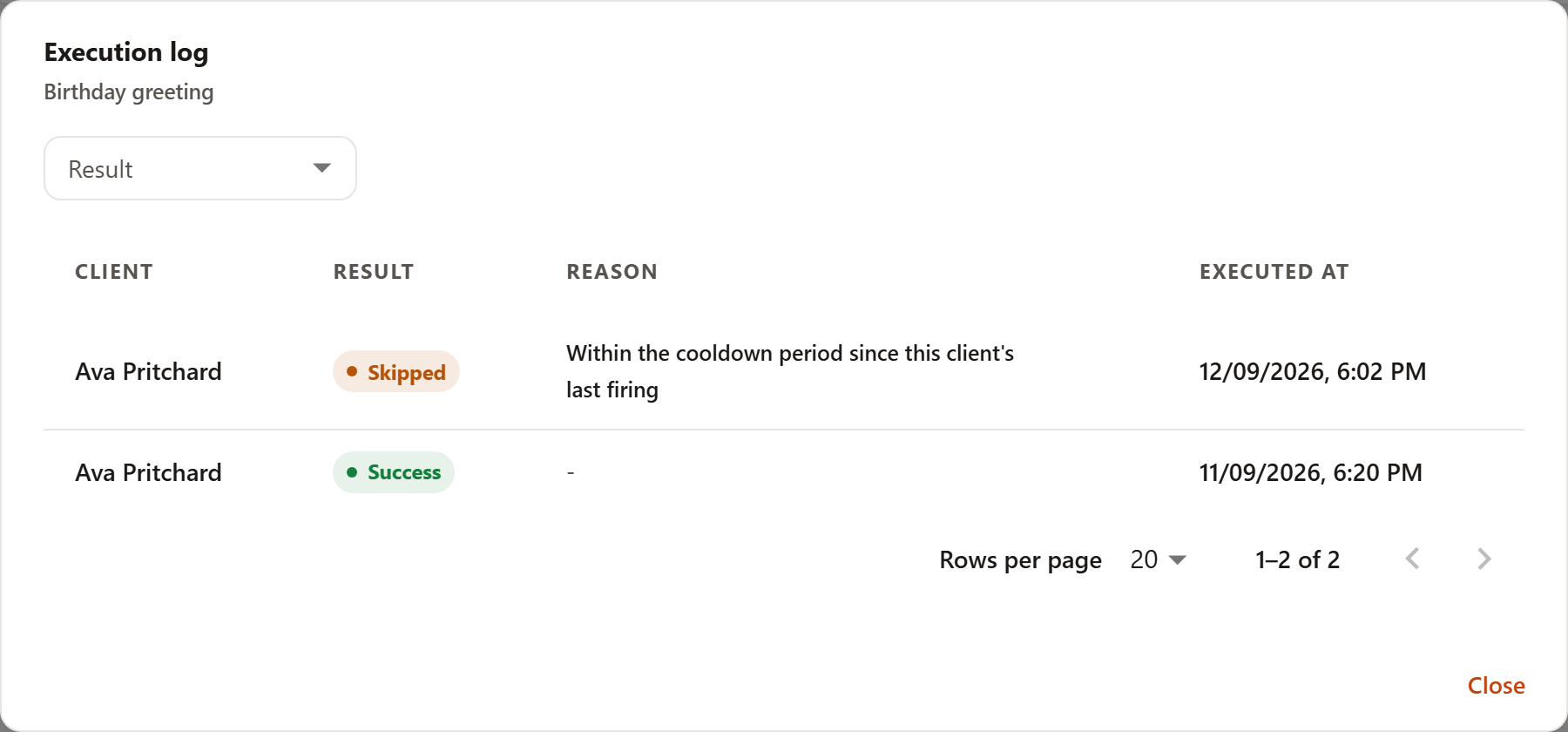
Three results come up:
- Success — the message was handed off for sending. Whether it actually reached the client can't currently be confirmed: even in the send history, a successfully sent email only shows "Sent" — that's already the last word there.
- Skipped — the condition was met, but a guard prevented the send. The reason sits right next to it.
- Failed — the send itself went wrong. If this piles up, a look at the send history is worth it.
One special case inside Skipped: when the per-pass cap of 25 messages has been reached, the row still counts as Skipped, but the log labels it Queued instead of "Skipped" — not an error, just a sign that this client is next in line, quite normally, at the following pass.
The reasons behind a skip include:
- Cooldown — The client already got this message recently — see "Cooldown" below.
- Maximum executions reached — The rule has used up its quota for this client.
- Already messaged today — Another rule already sent this client a follow-up message today.
- Unsubscribed — The client ended automated follow-ups via the unsubscribe link.
- Status isn't eligible — The client's status doesn't fit this trigger — see the note under Triggers above.
- No email address — The client's profile has no address to send anything to.
- Hit the per-pass send cap — The rule used up its quota of 25 messages for this pass. No error: this client is next in line at the following pass — the row carries its own "Queued" label instead of "Skipped".
- Payment problem unchanged — Payment failed only: a follow-up already went out for this payment problem, and it's still open since then.
Use Result to filter the list to one of the three stored outcomes. The log reaches back 90 days; older rows are removed automatically.
An empty log isn't an error, it's a statement. If it reads "This rule has been evaluated but hasn't reached any client yet", the pass ran — no one just happened to match the trigger. If it reads "This rule has not been evaluated yet", the rule simply hasn't had its turn: either because it was only created today, or because it's paused.
A sensible way to start
Start with one rule, not six. An inactivity reminder after 14 days, with a 30-day cooldown and at most three executions, is a good first standing order: it reliably notices when someone's slipping away, and it never becomes pushy.
Watch the log for a few days after that, before arming the next rule. Who the rule reached, and who it skipped and why, tells you more about your own thresholds than any amount of thinking about it in advance. And anyone who's already coming back regularly should notice nothing from the automation at all.