Communication
Notifications
TrainerFoundry sends emails in the background — payment confirmations, invoices, reminders. Under Settings you set your own channel preferences, for the account you're signed in with; whether a message went out, you see under Communication → Notifications.
Channels and events
Under Settings → Notifications there's a table: a row per event, a column per channel — your own preferences, for notifications addressed to your own account. It isn't a switchboard for what your clients receive: client-facing email either belongs to the mandatory set below, or, like the nudge for a new message, is governed by the client's own preference or unsubscribe link, not by anything here.
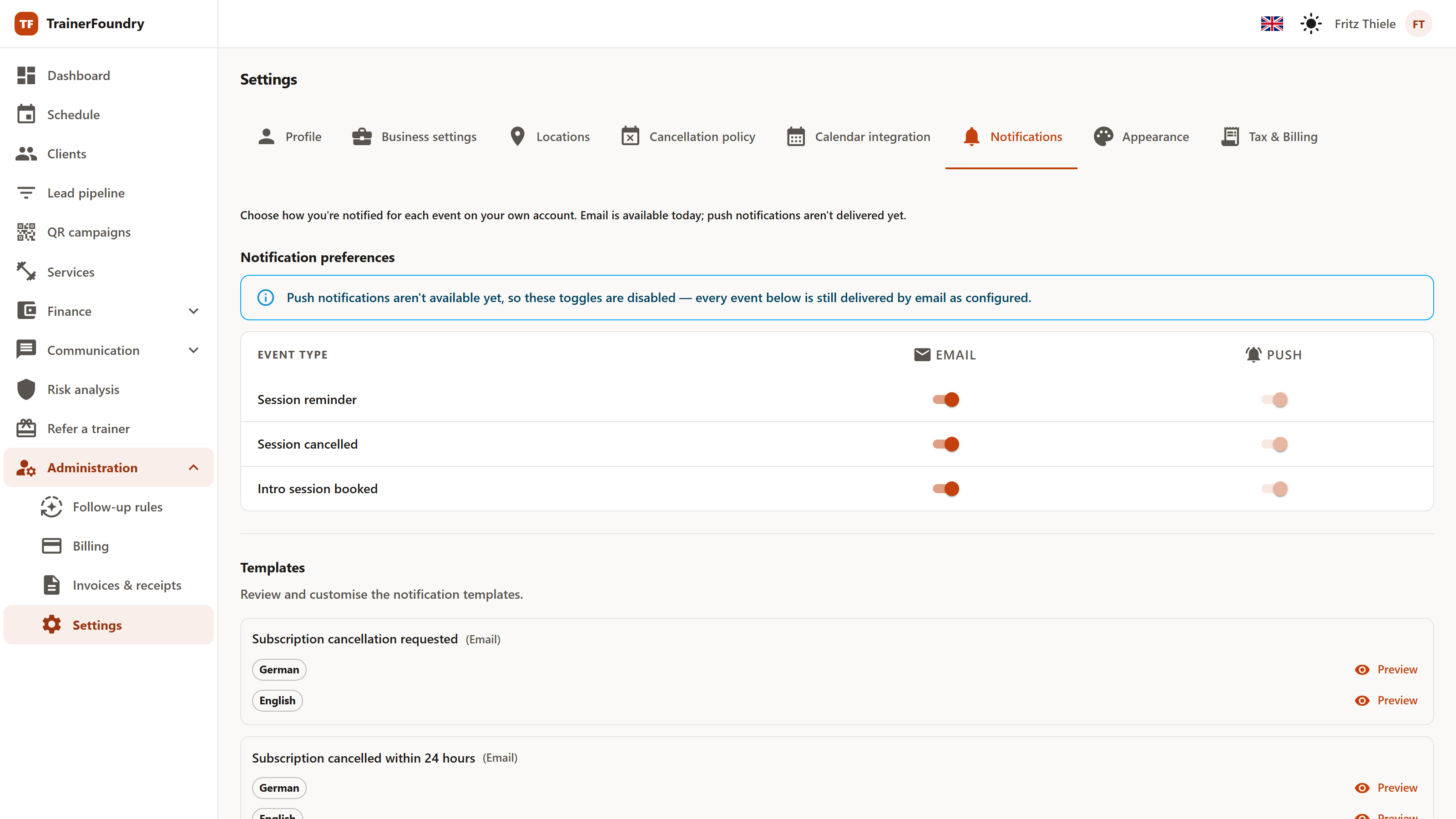
The table lists these events:
- Session reminder — A reminder about an upcoming session.
- Session cancelled — A session was cancelled.
- Intro session booked — A request came in through the public page.
Two channels sit in the table: Email and Push — the latter as a push notification, for notifications addressed to your own account. There's deliberately no SMS: the other two cover everything TrainerFoundry sends, and neither costs you anything per message.
Delivery today, however, is email only. Push delivery is built into the product but not yet in operation, and the table shows that itself: a note above the whole table explains why, and the toggles in the Push column are disabled. A push notification therefore shows up in the send history as Skipped — covered in the next section.
Independent of these toggles, some messages always go out because they belong to the process itself: the invoice for a payment, the client-portal invitation, the email-verification message. These mandatory messages can't be switched off — a client who requests a payment link needs to receive it.
Templates
Further down are the Templates — the text your clients actually read. Every template comes in two language variants, German and English: at send time, TrainerFoundry automatically picks the variant in the recipient's own set language. When the system doesn't know it — say, for a client with no Client App account of their own — it falls back to your organisation's default message language, which you set on the Business settings tab; German stays only the very last fallback, should even that be missing.
For messages to your clients about a payment, this order explicitly doesn't apply: an invoice, a credit note, a refund, a payment request, a payment reminder, and the notices for a failed or consequently-ended standing-booking payment always appear in your default message language — regardless of the language the client themselves chose, and regardless of channel. For an invoice, this applies to the email that comes with it. The invoice itself — German or English — is written by Stripe in the language stored there for the client, which TrainerFoundry updates at the client's next purchase. So after you change your default language, the recurring invoices of existing memberships may keep the previous language until then. Invoices already issued stay as they are. Your own notice about such an event, on the other hand — say, that a payment came in or that a membership ended because of a failed payment — reaches you in your own language, like every message to you: the one you set via the language switcher in the header.
Use Preview to open a single language variant and adjust the Subject and Body to your own voice — the change then applies only to that one language, the other stays untouched.
Expressions in double curly braces are placeholders and get replaced with real values at send time — name, session, amount. Leave them unchanged; mangle a placeholder and it goes out to the client literally as written.
The send history
Communication → Notifications lists every message sent, with its creation time, status, recipient, event type, channel and subject. Filter by channel, event type, status and date range.
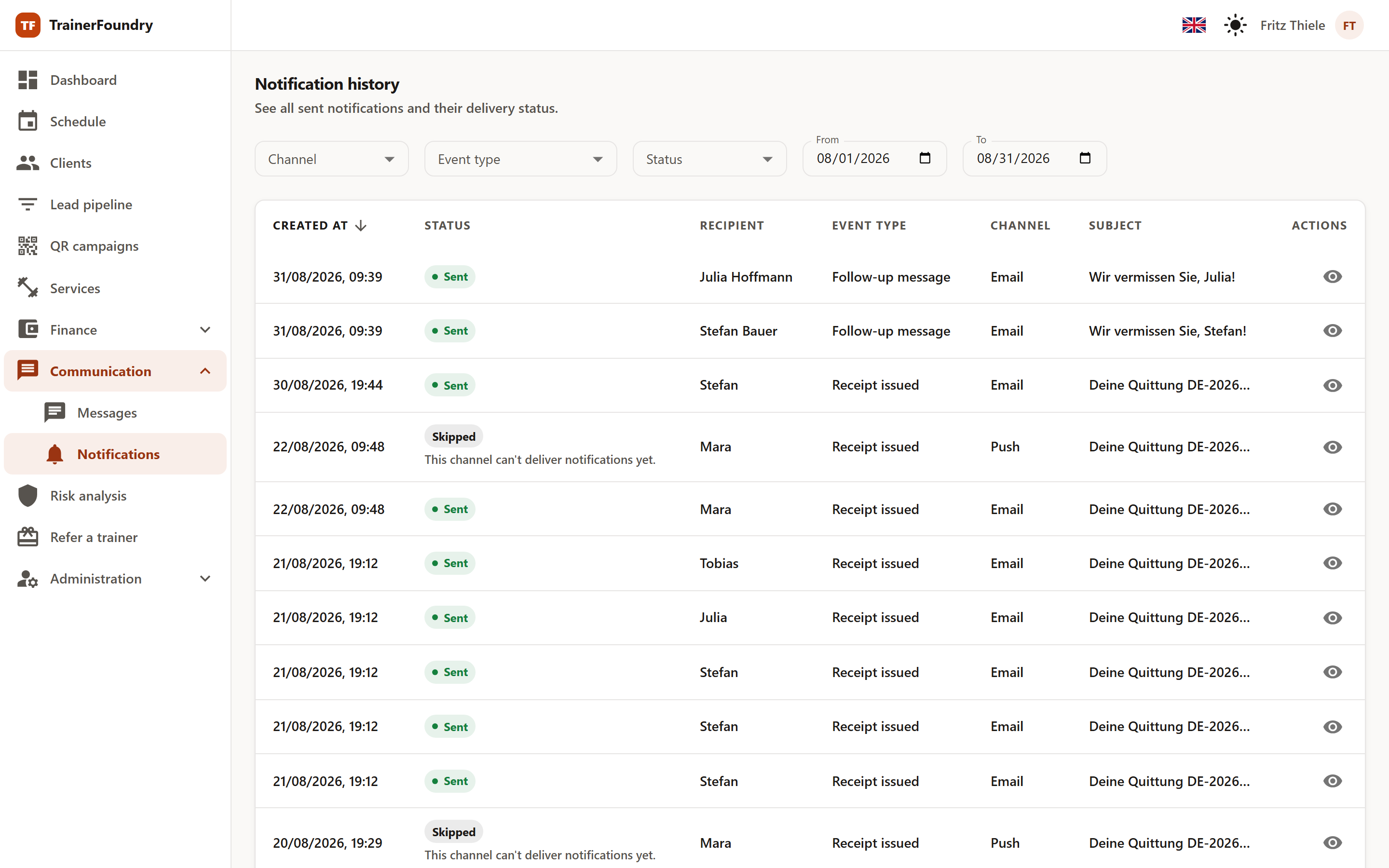
The status runs through six stages:
- Pending — Queued, but not sent yet.
- Sent — Handed off to the delivery service — today, this is the final state a successfully sent email reaches.
- Delivered — Would confirm the message actually reached the recipient — not produced today, since no delivery receipt comes back from the email service.
- Failed — The send didn't go through; the reason is in the detail view.
- Bounced — Would mean a permanent rejection, for example a non-existent address — not produced today, for the same reason as Delivered.
- Skipped — Deliberately never sent at all — either the recipient turned this notification off, or the channel (today: Push) has no real delivery yet. The reason is in the detail view.
In practice, only four of these six turn up today: Pending, Sent, Failed and Skipped. Delivered and Bounced would need a delivery receipt coming back from the email service, and that connection isn't in place yet — so Sent is the final state a successfully sent email reaches for now. The status filter above offers only these same four values — filtering by Delivered or Bounced could never turn up a row anyway.
A Skipped row carries one of two reasons right in the table: "The recipient turned this notification off", when the recipient's own channel preference blocked the send, or "This channel can't deliver notifications yet" — which today is true of every Push row, see above. Unlike Failed, there's nothing to retry here: TrainerFoundry deliberately never attempted the send, so a Skipped row offers no Retry action.
The eye icon in the Actions column opens the details with the full message text, the send and delivery timestamps, the number of attempts and — on a Failed or Skipped row — the failure reason or the reason. You retry a failed notification directly in the table, via the retry icon in that same column — not from the detail view. You can do that up to three times per message; a short message tells you whether it worked this time, and the row shows its new status straight away. If TrainerFoundry has since delivered a failed message by itself, it can't be sent again — a short note then tells you there's nothing left to do. Invoices and credit notes are sent again by TrainerFoundry itself — those rows show a hint instead of the icon.
If Failed rows pile up for a client, check the failure reason in the detail view — a wrong email address is one of the more common causes. Correct it in the client profile, or invoices and payment links run nowhere too.
Automatic triggers
Use Create trigger to add your own rules: a name, an event type, a channel, a trigger type and a template. A trigger never turns off the built-in notifications, and it never sends a second email alongside a built-in one. What it does depends on the trigger type and the event:
- Time before event (Session reminder only) — the trigger sends an email to the client at the lead time you choose before the session; more on that below. This is the only way a session reminder is sent at all.
- Immediately on event, Session cancelled — TrainerFoundry sends an email for this event anyway. Pick a template in the trigger and that email uses it; no additional email is sent.
- Immediately on event, Intro session booked — TrainerFoundry sends no email of its own for this; only the trigger sends one.
- Immediately on event, every remaining event — the trigger has no effect. TrainerFoundry always writes the New message email itself, a session reminder only comes through Time before event, and for Payment received, Payment failed, Package expiring and Lead assigned TrainerFoundry currently sends no notification. That's why the dialog doesn't offer these cases for a new trigger; an existing trigger of this kind is marked in the trigger list, and when you open it, a note points this out.
Email is the only channel on offer, because as noted above push delivery isn't in operation yet. An older Immediately-on-event trigger that's still set to Push is kept, but reaches no one. It's marked in the trigger list, and when you open it to edit, a note points this out. Switching it to Email only helps for the two events on which a trigger has an effect, per the list above: for Intro session booked it then sends the email, for Session cancelled the built-in email then uses its template. On the remaining events in the list it has no effect with Email either.
Every trigger also has a template. Leave the field on Use default template and the trigger sends whichever default template your organisation has on file for that combination of event type and channel. If there's no such default template, TrainerFoundry falls back to a built-in default text that doesn't appear in the template list. Want your own wording instead, pick one of the offered templates: only active templates matching the selected event type and channel are offered; change either one and a selection that no longer fits disappears from the field automatically. Each template appears in this list only once, even though — as described above — it consists of two language variants: your selection binds both at once, and at send time the variant matching the recipient's own language is used automatically. If an existing trigger already has a template assigned, you can swap it for another here or reset it to "Use default template". You adjust the default templates themselves — like every template — further up, in the Templates section via Preview.
Which trigger type is available depends on the event: for Session reminder it's only Time before event, because only a session has a fixed point in time that "X hours before" can refer to. For Session cancelled and Intro session booked it's only Immediately on event.
A Time-before-event trigger genuinely executes: for every upcoming session, TrainerFoundry regularly checks whether the configured lead time has been reached, then sends a single email to the relevant client — even for an older trigger that's still set to Push.
Delivery depends on a condition: a reminder only goes out while a meaningful portion of the configured lead time is still left at check time. With a very short lead time — 15 minutes, 30 minutes, 1 hour or 2 hours before the session — that can mean the reminder is skipped if the system happened to be idle in between: it's then not sent late, it's not sent at all. The longer the configured lead time, the less sensitive the trigger is to that — a "Session reminder, 24 hours before" trigger stays reliable even after a longer idle period. For reminders you want to count on, pick a lead time of 24 hours or more.