Finance
Payments & payment requests
Finance → Payments is your transaction journal: every payment and every refund as its own row, whether paid online, taken in cash or charged as a membership. This is also where you sell offers and issue refunds. Every row here is money your clients pay you — a completely different flow from your own TrainerFoundry subscription, covered under Subscription & invoices.
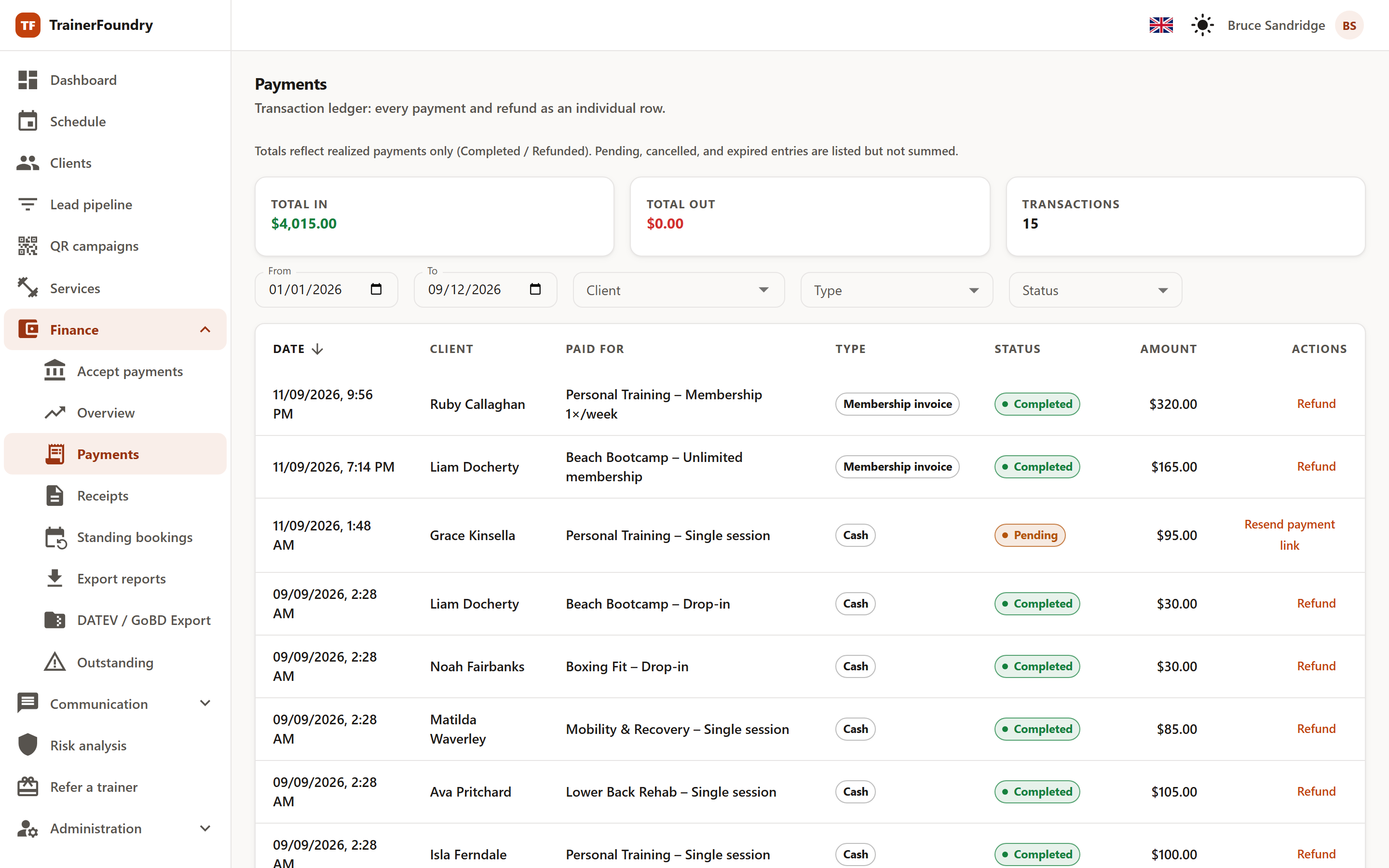
The totals at the top
Three figures sit above the table, for the selected period: Total in, Total out (refunds) and the number of Transactions.
Important for reading these right: only realised payments feed the totals — that is, Completed and Refunded rows. Pending, cancelled and expired rows are listed but not counted. An open payment request doesn't raise your revenue until the client actually pays.
Type and status of a row
The Paid for column names the offer, and Type says how the payment came about:
- Payment request — An offer you sold, or a session booking, that the client paid online via the payment link.
- Cash — Collected in person and recorded by you.
- Offer purchase — The client bought an offer themselves in the Client App — a single session or a session pack.
- Membership invoice — The recurring charge for a client's membership — not to be confused with your own TrainerFoundry subscription under Subscription & invoices.
- Voucher sale — A voucher you sold, which the client paid for through Stripe. A voucher you gave away for free is not a payment and does not appear here.
- Refund — Money that went back to the client — shown with a negative amount.
- Membership proration refund — In the Type filter, but TrainerFoundry doesn't currently create rows under it — cancelling a membership immediately credits the unused portion instead, covered under Standing bookings & memberships, below.
And the status, showing how far along it is:
- Completed — The money has moved.
- Pending — The request is out; the client hasn't paid yet.
- Refunded — A refund's own row (money going out) — the original charge it refunds keeps its Completed status.
- Cancelled / Expired — The request never reached completion.
You can filter by period, client, type and status, and sort by date and amount — so a question like "what has this client paid this year?" takes two clicks to answer.
Selling an offer
You sell wherever the client already is: via Sell offer on the client profile, or via the sell action on an offer in your Services & offers.
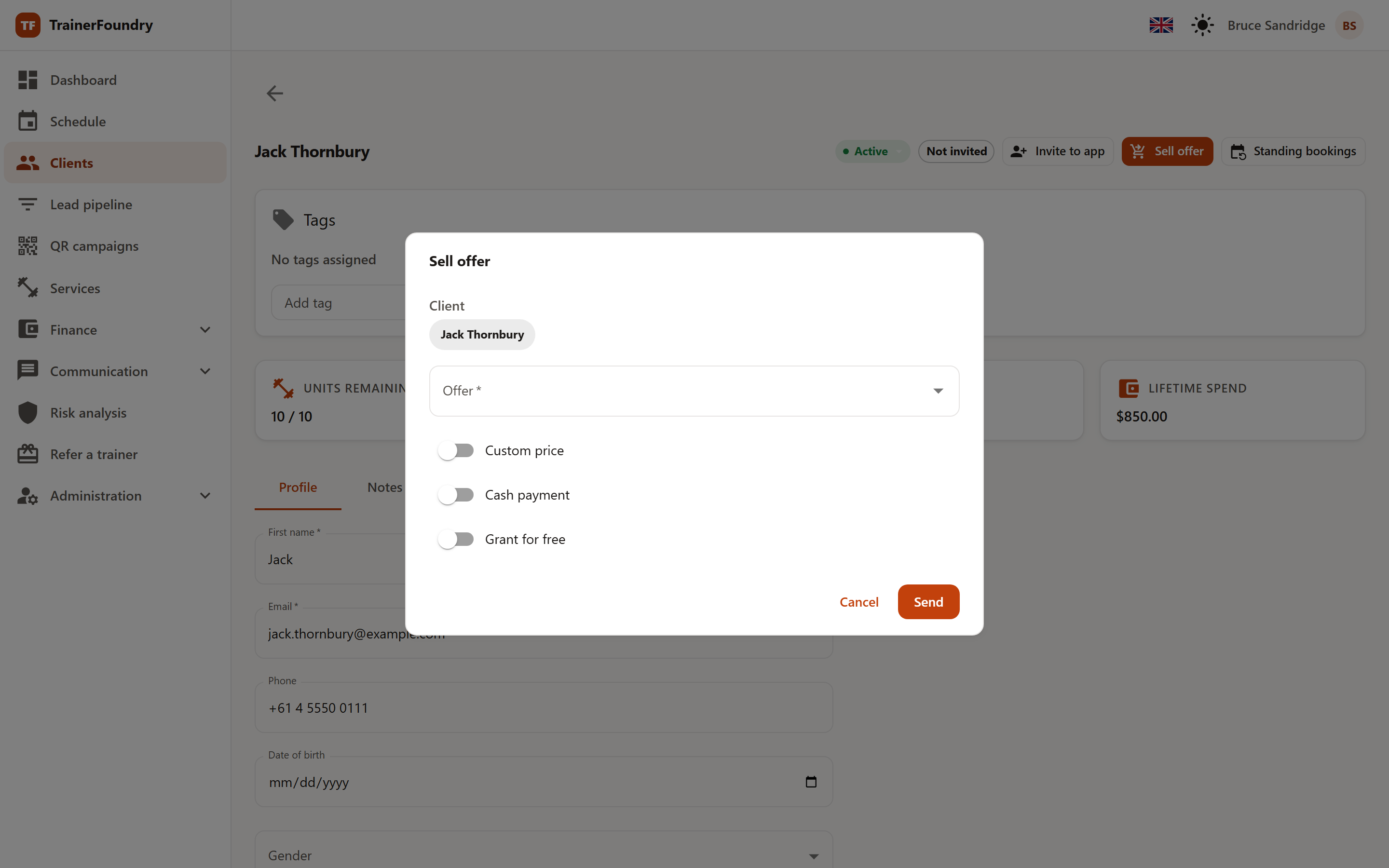
You pick the offer and have three toggles that change the default:
- Custom price — an amount that departs from the list price, say for a promotion or a discount. A reason is recorded alongside it.
- Cash payment — you collected in person; the payment is booked as settled immediately, with no payment link.
- Grant for free — the client receives the entitlement with no payment, say as a bonus or an apology.
Without any of these toggles, a payment request goes out: the client gets the payment link by email, and you also see a QR code they can scan on the spot — handy when you're standing together in the studio. You can also copy the link and send it another way.
Two special cases: memberships can be sold neither as cash nor for free — they need a running subscription through Stripe. And no sale needs the client's billing address: if the client record has no complete one, Stripe asks for it when the client pays through the payment link, and TrainerFoundry copies it into the client record — so the client is only ever asked once.
Downloading an invoice
For every card payment, Stripe issues an invoice in your name, and for every refund of such a payment a credit note — for a cash payment only if you've turned on the automatic invoice for cash payments (see Receiving payments). A row that carries such a document shows the action Invoice or Credit note; one click downloads the PDF. The same table also sits in the client record. What's on the invoices and where your clients find them is covered under Invoices to clients.
Chasing open payments
Rows in Pending status offer up to two actions: Resend payment link sends the email again, and Copy payment link puts it on your clipboard — that second one only shows up when the row actually carries a payment link; a cash-sourced pending row, or one created before Stripe was connected, has only the resend action. If you'd rather see everything open in one place, use Outstanding payments.
Refunding
Completed payments carry a Refund action. The dialog shows the payment's own amount as the refundable ceiling; if you've already issued a partial refund against it, a second one is checked against what's actually still left when you submit. You decide on:
- Method — back to the card via Stripe, or in cash. The method has to match the original payment: what was collected in cash can't go back through Stripe, and the other way round.
- Amount — the full amount or a partial one.
- Reason — required, and stays recorded on the refund.
You don't need to worry about the sessions yourself: when the payment was for a package, TrainerFoundry automatically deducts the client's sessions in proportion to the refunded amount. A full refund reverses the whole package; a half refund reverses half of it.
The same works for a Membership invoice: a membership charge can also be refunded to the card here. That's a different action from cancelling a running membership immediately — that only credits the unused portion automatically (for Fixed slots, a credit for one session per paid session that no longer takes place), with no card refund; if you actually want to send the money back to the client, that happens here instead. More on that under Standing bookings & memberships.
A Voucher sale is refunded here too, on its own row. If the voucher hasn't been redeemed yet, the refund voids it automatically; a voucher that has already been redeemed can't be refunded any more, because the client has already received its sessions. So you don't void a paid voucher in the voucher list — you refund it here.
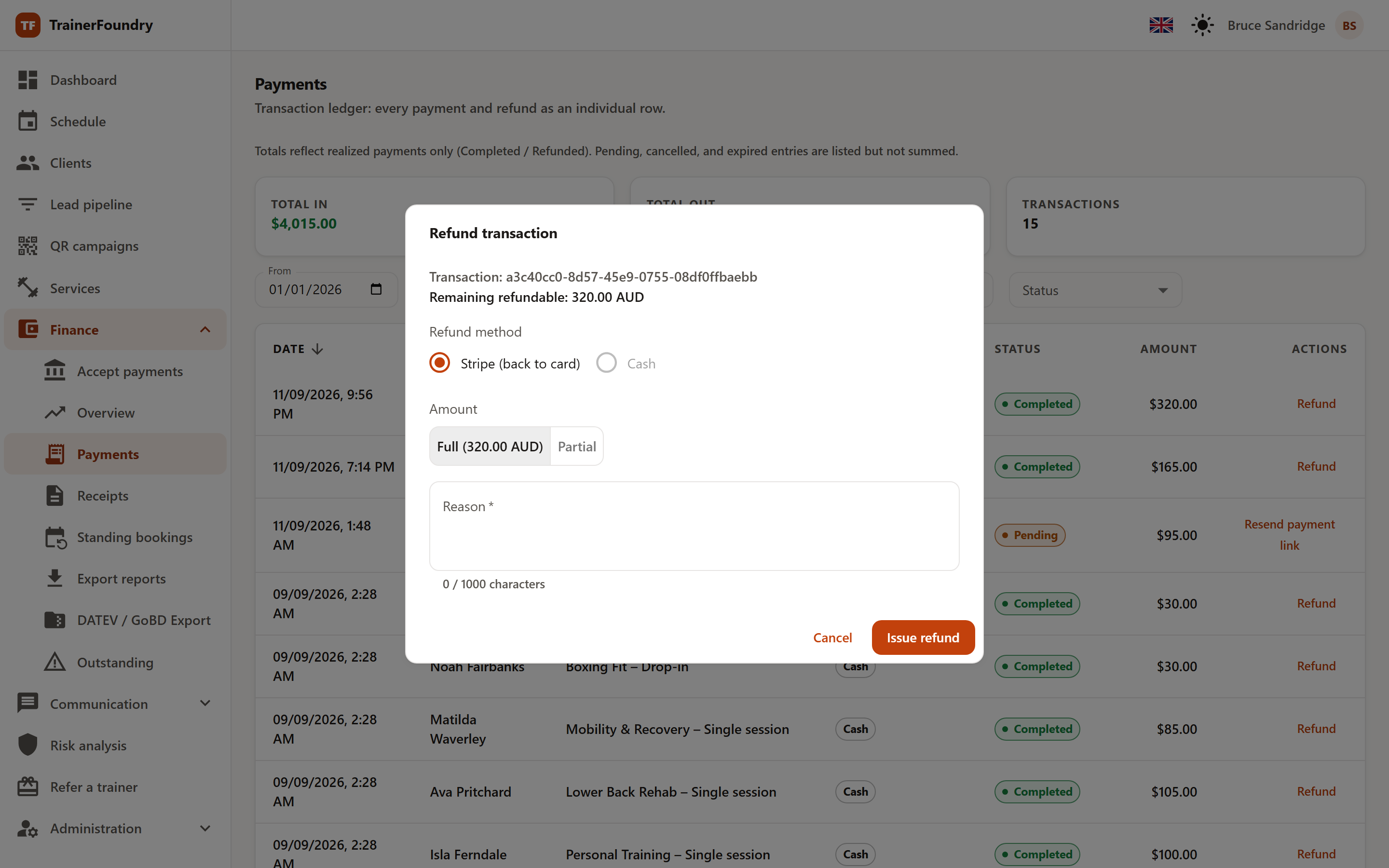
The refund then appears as its own row with a negative amount in the journal, carrying Refunded status — the original payment stays in place and keeps its own Completed status; nothing on it flips. Nothing is deleted: both entries stay traceable, which matters for your own bookkeeping. If the original payment has an invoice, Stripe automatically issues a credit note for exactly the refunded amount; it shows on the refund row, usually within a minute.