Finance
Tax & VAT
Under Settings → Tax & Billing you set up, once, whether tax applies and which details TrainerFoundry passes on to your invoices. These details affect every invoice to your clients. The Finance overview, by contrast, shows the same gross figures for every scheme, with no tax broken out.
The most important thing up front — and the page says it too: TrainerFoundry provides the tools, the correct tax classification stays your own responsibility. When in doubt, ask your tax advisor, not this guide.
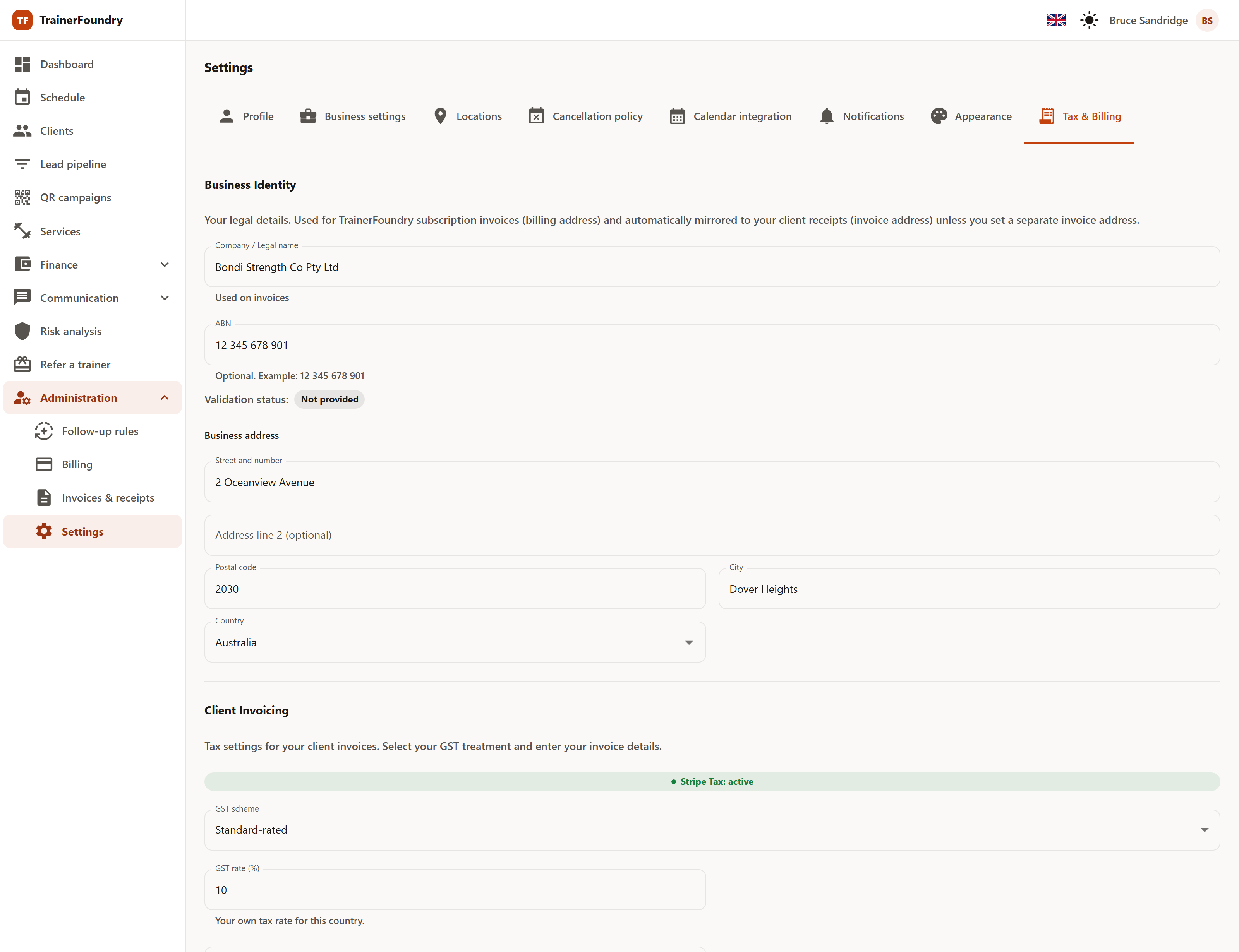
Business identity
The top section collects your legal details: Company / Legal name, optionally your tax ID, and your business address. How the tax-ID field is labelled depends on your country — more on that in the next section.
You enter each of these details exactly once. Name, tax ID and business address appear on your own TrainerFoundry invoices (TrainerFoundry's subscription invoice to you — see Subscription & invoices). On the invoices to your clients, your tax ID appears and, in the Issued by line, your name with your full address — the business address or the differing address for tax calculation. At the top of those invoices Stripe also prints the business details you gave Stripe; you'll find them under Accept payments on the Account details tab.
The tax ID and its validation
The field itself adapts to your business address: in Australia it's called ABN, in Germany USt-IdNr., in Austria UID, and in Switzerland MWST-Nr. Enter a European tax number and TrainerFoundry checks it via VIES — the EU's confirmation database; outside the EU this check doesn't apply, so an Australian ABN is stored but not run through it. Under the field sits the current status:
- Not provided — No number is on file — the normal case for many solo trainers. Outside the EU this status also shows even when you HAVE saved a number: there is no check to run there, so the status simply stays "Not provided" and your saved number is unaffected.
- Pending — The check is running in the background and can take a few minutes.
- Valid — The number has been confirmed; the check date sits next to it.
- Invalid — The check failed. Review what you entered and trigger it again via "Re-check".
The check serves a concrete purpose: if your business is based in an EU country other than Germany, a valid tax number means your own TrainerFoundry invoice is issued under the B2B reverse-charge mechanism, without VAT. The amount stays the list price; the invoice simply shows no VAT. If you're based in Germany, your TrainerFoundry invoice always includes German VAT, with or without a number. Either way, without a number you carry on as normal; the number only affects that one invoice. This mechanism is specific to a European tax number; it has no equivalent for an Australian ABN, since TrainerFoundry's own tax registration for this invoice is Germany-only.
Choose your tax scheme
The lower Client Invoicing section starts with the central decision. Which schemes are on offer depends on the country of your business address — or, if you've entered one, of your address for tax calculation. For Australia, Germany, Austria or Switzerland, all three schemes are available; for any other country, only Exempt remains:
- Standard-rated — The ordinary case. You charge tax and remit it. Stripe Tax calculates the tax on your invoices; you don’t enter a tax rate.
- Small business (not registered) — You are not registered for VAT, GST or sales tax in your country, so you charge no tax. Available for an address in Australia, Germany, Austria or Switzerland. In the picker, this scheme carries the term customary in your country — TrainerFoundry fills it in from your country's tax catalog.
- Exempt — A standalone legal statement, not a fallback for the small-business scheme: you are relying on a different legal exemption for your supply. Here too the invoice shows no tax; you add the note on the exemption yourself in the footer note.
This scheme states that you are not registered — it is not an exemption, not even where your own country's label for it happens to contain the word for "exempt" (in Switzerland, the German „befreit").
TrainerFoundry adds no legal note to your invoices. The note your country expects for a small business or an exemption, you add yourself in the Invoice footer note. For the small-business scheme, the page suggests a wording customary in your country where there is one.
You don't enter a tax rate under any scheme. With Standard-rated, Stripe Tax calculates the tax on every invoice itself; TrainerFoundry derives the usual rate from your country and uses it only for the price preview, for example when you create an offer. What counts is what's on the invoice.
The choice applies from the moment you save to the invoices of new sales. For the two schemes without tax, those invoices show no tax.
Running memberships follow automatically: the switch applies to all their invoices from the next renewal on. The amounts don't change — with Standard-rated, the tax is included in the existing price. If Stripe can't determine a client's tax location, for example an address in the US or Canada without a postcode, their invoices stay without Stripe Tax as before.
Invoices already issued don't change after the fact. So if you switch your tax scheme mid-year, older invoices stay exactly as they were issued — correctly, since their scheme is what applied at the time.
Stripe and tax calculation
Above the picker sits a status note for Stripe Tax — automatic tax calculation on your Stripe account. For the two schemes without tax, it reports there's nothing to calculate. For Standard-rated, two things are required: completed Stripe onboarding and a complete address — your business address or, if you've entered one, your address for tax calculation. Once both are met, the note reads Stripe Tax: active. If one is missing, it says exactly that — along with how to fix it.
Invoice details
Stripe issues the invoices to your clients in your name, and Stripe assigns their numbers too. One field from this section goes onto the invoice: Invoice footer note. This free-form text is printed at the bottom of every invoice — bank details, payment terms or a short thank-you are common choices. It's also where your legal note belongs, such as the note on your small-business status: TrainerFoundry writes no legal text onto the invoice itself.
A change applies to every invoice from the moment you save, including the recurring invoices of running memberships. Invoices already issued stay as they are.
Address for tax calculation
By default, TrainerFoundry works with your business address from the top section. If a different address should count for tax, turn on Address for tax calculation differs from business address. A second address block then appears underneath.
This address sets the country that decides which tax schemes are on offer and how Stripe Tax is set up; with Standard-rated, TrainerFoundry also gives it to Stripe Tax as your head office. On the invoices to your clients it stands in the Issued by line in place of the business address. It appears on none of your own TrainerFoundry invoices; those always carry your business address.
Saving
Both sections belong to one form and are saved together with a click on Save. The first time, you need to confirm the notice at the bottom of the page — I have read and understood the notice. Without this checkbox, TrainerFoundry won't save. After that it stays checked.
If a required field is left empty, the page reports it and marks the affected fields instead of letting the click silently do nothing — an empty address field, for example.
If you're setting up TrainerFoundry for the first time, you'll already meet these fields in the setup wizard's Tax step. You can change them here at any time afterward.