Management
Managing clients
The Clients area is your central CRM: this is where you create new clients, find existing ones via search and filters, and open the full client profile with notes, documents, sessions and ledger.
The client list
Via Clients in the left-hand navigation you open the list of every client in your organisation. Each row shows the name, email, status, creation date, a risk signal, assigned tags and the app-access status.
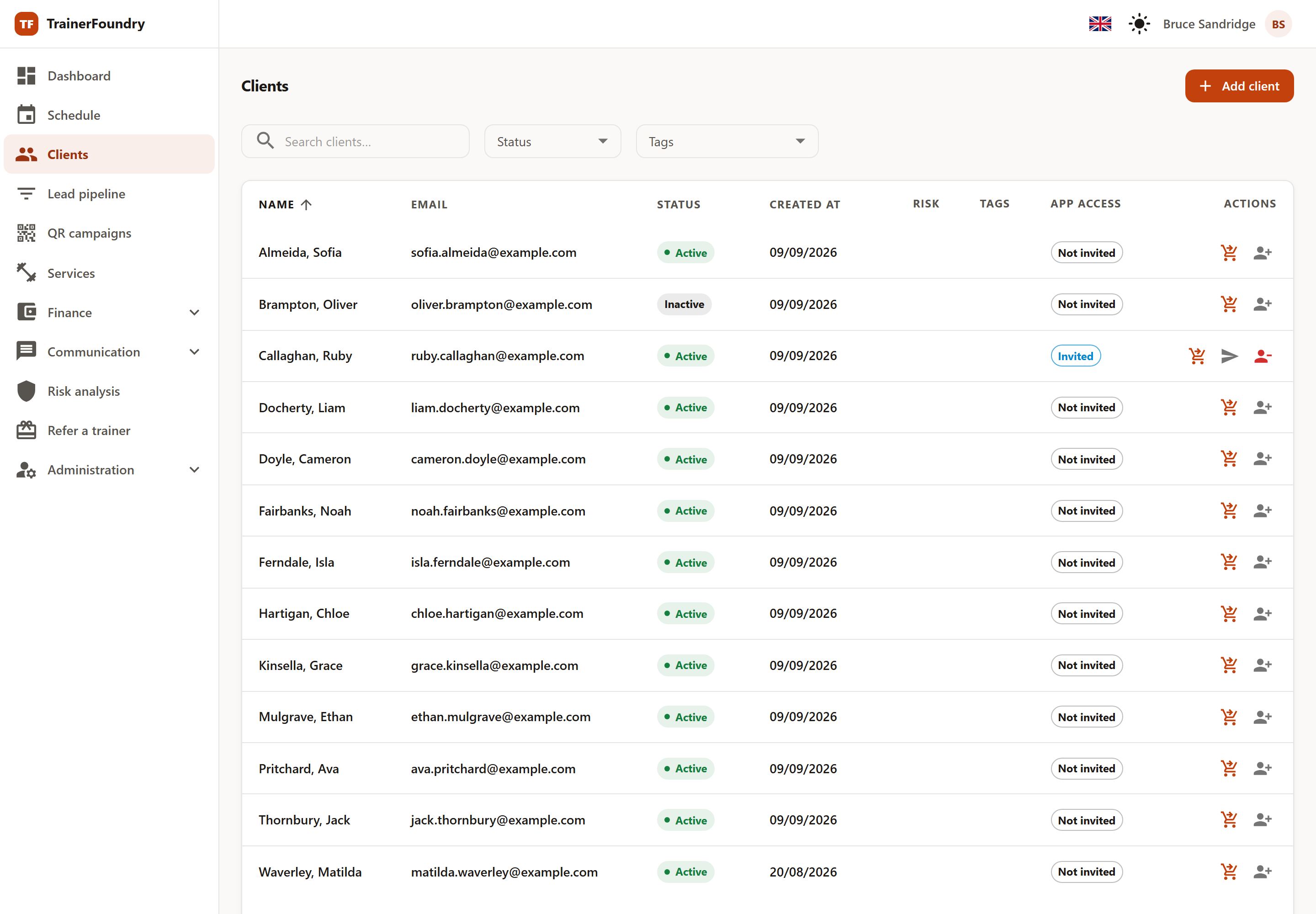
- Search — type a name or an email into the search field to narrow the list instantly.
- Status filter — show only Active, Inactive or Lead.
- Tag filter — filter by one or more tags you assign yourself.
- Sorting & pages — click a column header to sort; at the bottom right you set rows per page and page through the results.
Creating a client
Click Add client at the top right. In the dialog you enter at least first name, last name and email — other details like phone, date of birth or billing address can be added later in the profile. Once saved, the client appears in the list immediately.
On the Starter plan, you're capped at 25 active clients: the 26th active client can only be created once you've switched to Professional or set an existing client to Inactive — a button in the notice takes you straight to the Billing page, where you switch in Stripe's customer portal.
The client profile
Clicking a row opens the client profile. At the top you see the name, the status and quick actions like Sell offer and Standing bookings. A summary strip rounds up the key figures: units remaining, active subscriptions, unpaid amounts and lifetime spend.
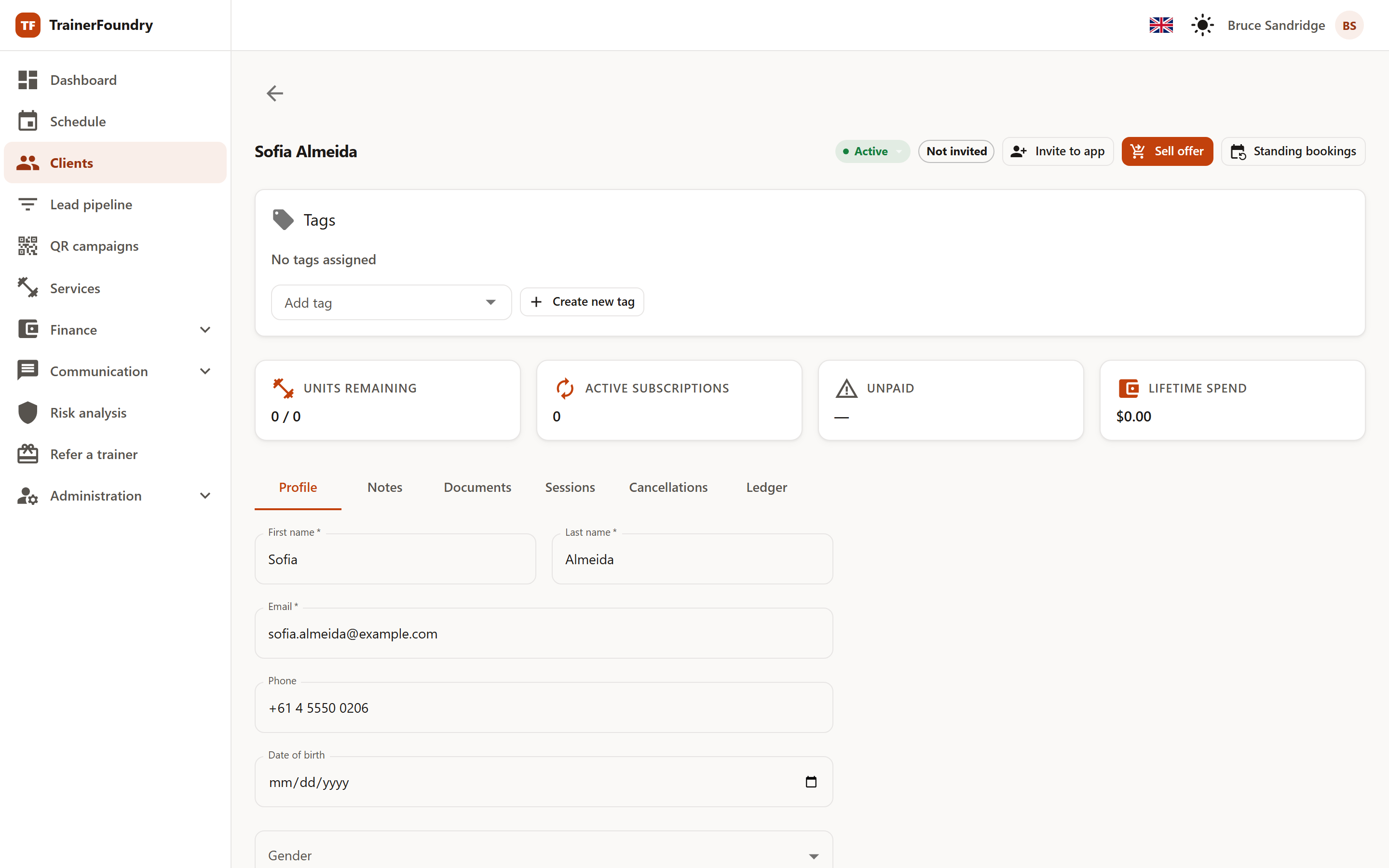
Use the tabs to switch between the sections of the profile:
- Profile
- The client's core details — first name, last name, email, phone, date of birth, gender and status. This is also where you store health notes and the billing address.
- Notes
- A chronological note history. Record training progress, conversations or agreements — Ctrl+Enter saves a note quickly.
- Documents
- Upload documents like health questionnaires or contracts. A storage indicator shows usage per client.
- Sessions
- All of the client's past and upcoming sessions at a glance, with a marker for sessions already used; remaining units sit in the summary strip above.
- Cancellations
- An overview of every cancellation and no-show — with the scheduled session, the cancellation date and the type.
- Ledger
- The client's financial history: purchases, payments and outstanding amounts as a traceable ledger.
Tags & status
Use tags to group clients freely by your own categories — say, by training goal or package. The status assigns every client to one of three stages:
- Active — a client you're currently working with.
- Inactive — not currently under your care.
- Lead — a prospect who hasn't become a client yet.